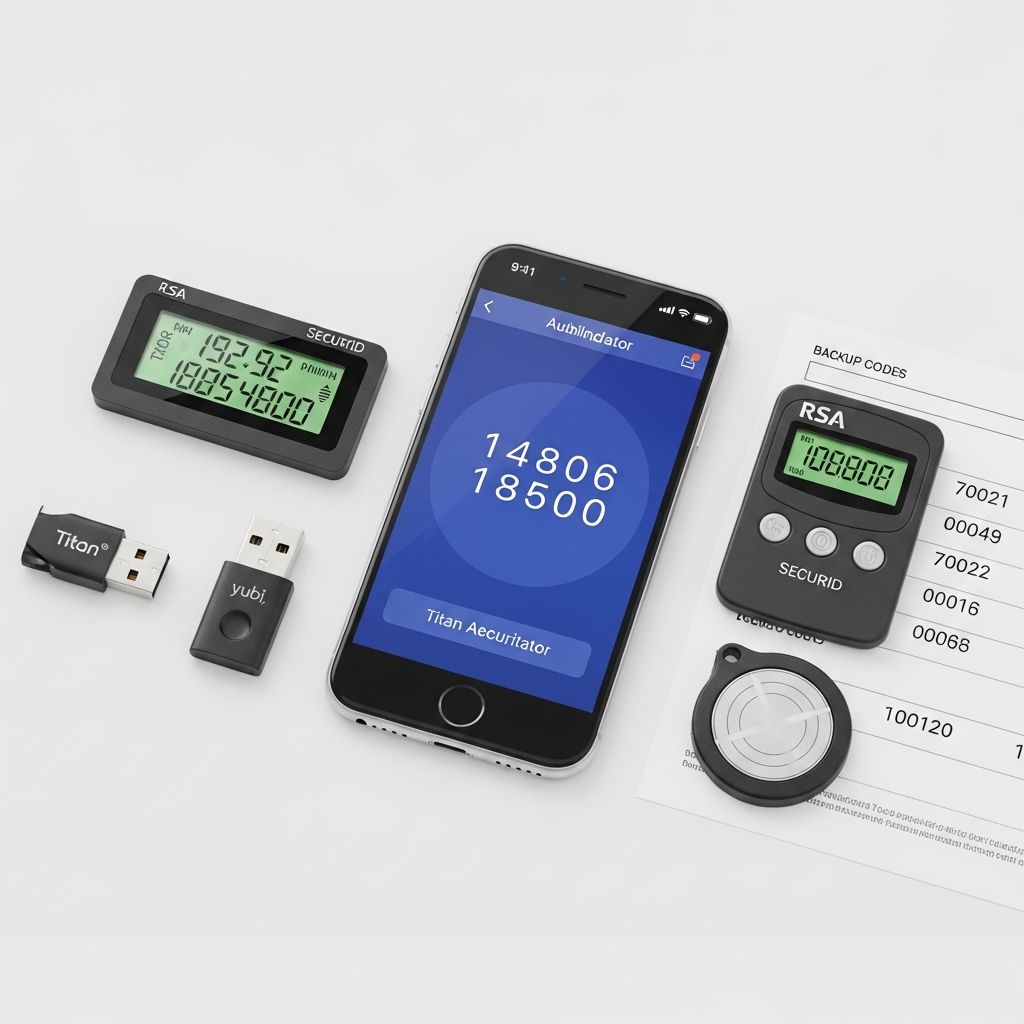
Best Tools For Managing Two-Factor Authentication Effectively: A Comprehensive Guide
In an era where cyber threats are becoming increasingly sophisticated, relying solely on a password is no longer sufficient. Data breaches occur daily, and even the most complex passwords can be compromised through phishing or brute-force attacks. This is where Two-Factor Authentication (2FA) becomes your most vital line of defense.
However, as you enable 2FA across dozens of accounts—from banking and email to social media—managing these security layers can become overwhelming. If you lose your device or fail to back up your secrets, you risk being locked out of your digital life permanently. This guide explores the best tools for managing two-factor authentication effectively, ensuring your security is both robust and manageable.
Understanding Two-Factor Authentication (2FA)
Before diving into the tools, it is essential to understand what 2FA is. At its core, 2FA is a security process that requires you to provide two different forms of identification to access an account. These are typically categorized into:
- Something you know: A password or PIN.
- Something you have: A smartphone, a hardware token, or a security key.
- Something you are: Biometrics like fingerprints or facial recognition.
By requiring a second factor, you ensure that even if a hacker steals your password, they cannot access your account without the physical device or biometric data in your possession.
Why You Need Dedicated 2FA Management Tools
While many platforms offer 2FA via SMS, this method is increasingly discouraged by security experts due to “SIM swapping” attacks. Instead, using authenticator apps or hardware security keys is the gold standard. Managing these effectively requires tools that offer:
- Multi-device synchronization: So you can access codes on your phone, tablet, or desktop.
- Cloud backups: To prevent permanent lockout if your primary phone is lost or broken.
- Encryption: To ensure your 2FA “seeds” (the secret keys) are stored securely.
- Ease of use: To ensure the security process does not become a hindrance to your daily productivity.
Top 10 Best Tools For Managing Two-Factor Authentication Effectively
1. Authy (by Twilio) – Best for Multi-Device Sync
Authy has long been a favorite for users who want a balance between high security and extreme convenience. Unlike many competitors, Authy allows you to sync your 2FA tokens across multiple devices, including Windows, macOS, iOS, and Android.
Key Features:
- Encrypted cloud backups.
- Multi-device support with a single account.
- Offline code generation.
- Protection via PIN or biometrics.
Expert Tip: When using Authy, ensure you disable the “Allow Multi-device” feature after you have set up your secondary devices. This prevents unauthorized users from adding a new device to your account even if they gain access to your SMS.
2. Bitwarden – Best Integrated Password & 2FA Manager
Bitwarden is a leading open-source password manager that includes a built-in 2FA authenticator (available in the Premium version). This makes it one of the best tools for managing two-factor authentication effectively because it consolidates your credentials in one place.
Why it stands out:
- Convenience: It can auto-fill your TOTP (Time-based One-Time Password) codes directly into browser fields.
- Open Source: The code is publicly auditable, ensuring transparency.
- Zero-Knowledge: Bitwarden cannot see your data; it is encrypted locally before being synced.
3. Microsoft Authenticator – Best for Enterprise and Ecosystem Users
If you are heavily invested in the Microsoft ecosystem (Office 365, Azure, Outlook), this tool is indispensable. It offers a “Passwordless” login feature that allows you to approve logins via a push notification rather than typing a code.
Key Features:
- Push notifications for easy one-tap approval.
- Cloud backup for iOS and Android.
- Support for non-Microsoft accounts (Google, Facebook, etc.).
4. Google Authenticator – The Minimalist Choice
Google Authenticator is the pioneer of 2FA apps. For years, it was criticized for lacking a backup feature, but Google recently updated it to allow synchronization with your Google Account. It remains the most straightforward, “no-frills” option available.
Pros: Extremely fast and simple. Cons: Lacks advanced organization features like folders or custom icons.
5. YubiKey (Hardware Security Key) – The Ultimate Security Standard
For those who want the highest level of protection, physical hardware keys like the YubiKey are the answer. These devices use U2F (Universal 2nd Factor) and FIDO2 standards. To log in, you must physically touch the key inserted into your USB port or tap it via NFC against your phone.
Why it is effective: It is virtually immune to phishing. A hacker might trick you into giving up a code from an app, but they cannot “phish” a physical device you hold in your hand.
6. 2FAS (Two-Factor Authentication Service) – Best Open-Source App
2FAS is a transparent, community-driven app that has gained massive popularity for its privacy-first approach. It does not require an account, and it offers a unique browser extension that allows you to “push” 2FA codes from your phone to your computer browser.
Key Highlights:
- iCloud and Google Drive encrypted backups.
- Browser extension for seamless desktop login.
- Completely free and open-source.
7. 1Password – Premium User Experience
Similar to Bitwarden, 1Password allows you to store 2FA seeds within your password entries. Its “Watchtower” feature is particularly useful, as it alerts you which of your accounts support 2FA but do not have it enabled yet.
Best For: Families and businesses who need to share 2FA access securely among multiple users.
8. Aegis Authenticator – Best for Android Power Users
Aegis is an Android-exclusive app designed for users who want total control. It supports encrypted exports, allowing you to move your 2FA tokens to any other app or store them in a secure cold storage location.
Unique Feature: It allows you to group accounts and customize icons, making it much easier to manage a large number of tokens.
9. Ente Auth – The Rising Star
Ente Auth is a relatively new player that focuses on end-to-end encrypted cloud sync. It is part of the Ente ecosystem (known for encrypted photo storage). It offers a beautiful, modern UI and is available across all major platforms.
10. KeePassXC – Best for Offline Management
If you do not trust the cloud at all, KeePassXC is a desktop-based password manager that stores your database locally. It includes a built-in TOTP generator. You are responsible for your own backups, making it the most “private” but also the most “manual” option.
How to Choose the Right 2FA Tool for Your Needs
Selecting the best tools for managing two-factor authentication effectively depends on your personal threat model and technical comfort level. Consider the following factors:
1. Your Device Ecosystem
If you switch between an iPhone, a Windows PC, and an Android tablet, choose a tool with cross-platform synchronization like Authy or Bitwarden. If you stay strictly within Apple’s ecosystem, the built-in iOS Password Settings (which now includes 2FA) might be enough.
2. Cloud vs. Local Storage
Cloud-based tools (Authy, Microsoft) are convenient because they prevent lockouts if you lose your phone. However, if you are a privacy purist, local-only tools (Aegis, KeePassXC) ensure that your 2FA seeds never touch a third-party server.
3. Integrated vs. Standalone
Using an integrated tool (like 1Password) is faster because the code is right next to your password. However, some security experts argue for “splitting your eggs” by using a separate app for 2FA to ensure that if your password manager is breached, your 2FA remains safe.
Step-by-Step Guide: How to Set Up 2FA Effectively
Follow these steps to ensure you are using your chosen tool correctly and safely:
- Download Your Chosen App: Select one of the tools mentioned above and install it on your primary device.
- Enable 2FA on Your Account: Go to the “Security” or “Privacy” settings of the service you want to protect (e.g., Gmail, Amazon).
- Scan the QR Code: The service will display a QR code. Use your 2FA app to scan it. This links the account to your app.
- Save the Recovery Codes: This is the most crucial step. Most services will provide 10-12 “Backup” or “Recovery” codes. Print these out or store them in a physical safe. Do not store them solely on your phone.
- Verify the Setup: The app will generate a 6-digit code. Enter it on the website to confirm the link is active.
Best Practices for Managing Your 2FA Tokens
Simply having an app is not enough. To manage your security effectively, you should follow these professional best practices:
Never Rely on a Single Device
Always have a backup method. This could be a second phone with the same app synced, a hardware key, or physical recovery codes. If your only phone falls into a lake, your recovery codes are your only way back into your accounts.
Organize Your Tokens
As you add more accounts, things can get messy. Use apps like Aegis or 2FAS that allow you to use custom icons and labels. Searching for “Work Email” is much faster than scrolling through a list of twenty “Google” entries.
Regularly Audit Your Accounts
Every six months, review your 2FA settings. If you no longer use a service, remove the token from your app. Also, check if any services you use have recently added support for Passkeys, which is the next evolution of 2FA.
Secure the App Itself
An authenticator app is a master key. You must protect the app with a biometric lock (FaceID/Fingerprint) or a strong PIN. Most modern apps offer this in their settings menu.
The Future of Authentication: Passkeys
While we discuss the best tools for managing two-factor authentication effectively, it is important to note that the industry is moving toward Passkeys. Passkeys are a replacement for passwords entirely. They use your device’s biometric authentication to sign you in securely.
Tools like 1Password, Bitwarden, and Google are already leading the charge in managing Passkeys. In the near future, you may not need to manage 6-digit codes at all, as your devices will handle the cryptographic handshake automatically.
Frequently Asked Questions (FAQ)
What happens if I lose my phone with my 2FA app on it?
If you have enabled cloud sync (like in Authy or Microsoft Authenticator), you can simply log in on a new device. If you used a local-only app, you must use the Recovery Codes you saved during the initial setup to regain access to your accounts.
Is SMS 2FA better than nothing?
Yes, SMS 2FA is better than having no protection at all. However, it is vulnerable to SIM swapping. If an app-based or hardware-based option is available, you should always choose that over SMS.
Can I use multiple 2FA apps at the same time?
Yes. You can scan the same QR code with multiple apps (e.g., Google Authenticator and Bitwarden) simultaneously. This creates a redundant backup of your 2FA token.
Are hardware keys like YubiKey worth the price?
For high-value accounts (like your primary email or financial accounts), the answer is a resounding yes. They provide the highest level of protection against remote phishing attacks.
Conclusion
Managing your digital security doesn’t have to be a chore. By selecting the best tools for managing two-factor authentication effectively, you can create a seamless and highly secure online experience. Whether you choose the convenience of Authy, the integration of Bitwarden, or the ironclad security of a YubiKey, the most important step is to act now.
Don’t wait for a security breach to realize the importance of 2FA. Choose a tool from this list, set up your accounts, and—most importantly—secure your recovery codes today. Your future self will thank you for the peace of mind.