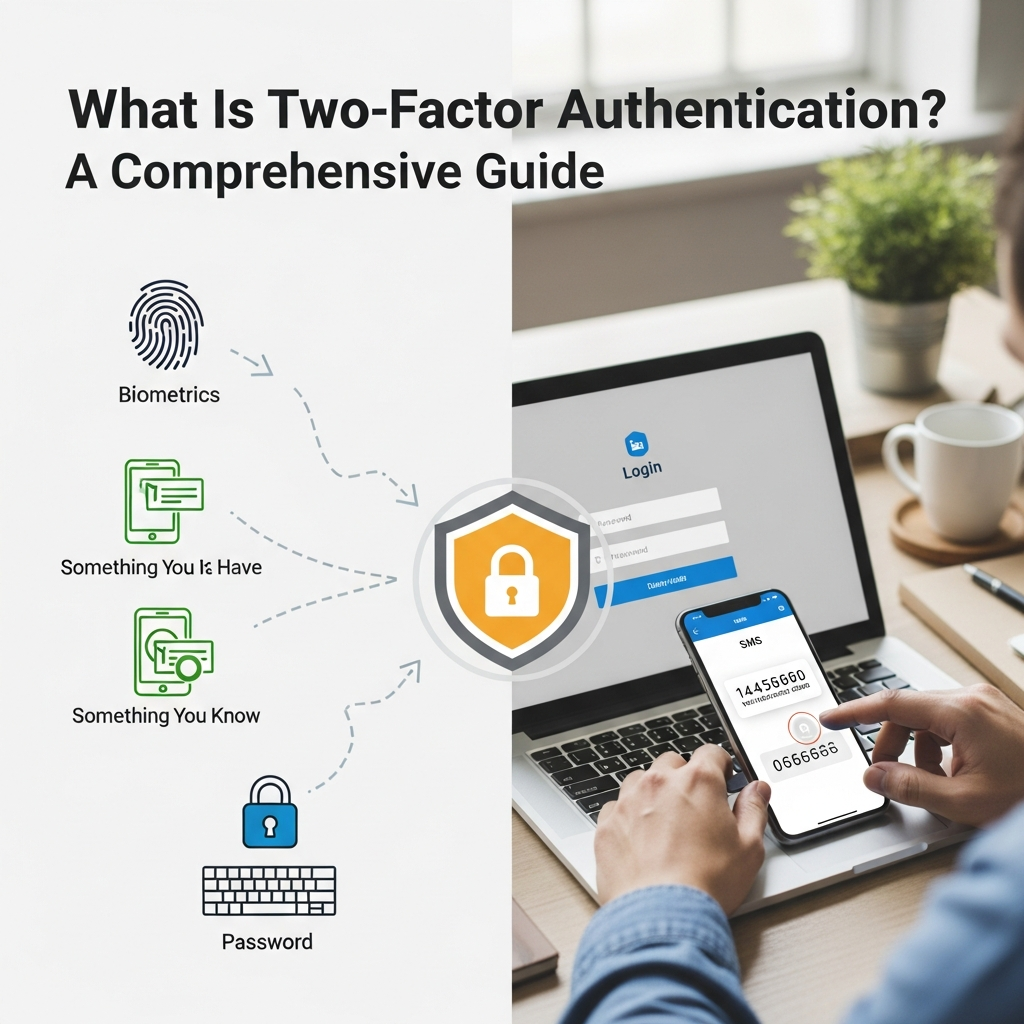
What Is Two-Factor Authentication? The Ultimate Guide to Securing Your Digital Life
In an era where our personal, financial, and professional lives are managed almost entirely online, the security of our digital identity has never been more critical. You likely use passwords for everything—from your email and social media to your banking apps. However, in the modern landscape of high-tech cybercrime, a password alone is no longer enough to keep you safe.
This is where Two-Factor Authentication (2FA) comes into play. It is one of the most effective tools available to prevent unauthorized access to your accounts. But what exactly is it, how does it function, and why should you bother setting it up?
This comprehensive guide will walk you through everything you need to know about 2FA, transforming you from a concerned user into a digitally secure pro.
What is Two-Factor Authentication (2FA)?
At its core, Two-Factor Authentication (2FA) is a security process in which a user provides two different authentication factors to verify themselves. This process is designed to provide a double layer of protection for your sensitive data and the accounts you access.
Think of it like a high-security vault. To open the vault, you don’t just need a key (the first factor); you also need to provide a unique fingerprint scan or a code sent to your private device (the second factor). Even if a thief steals your key, they still cannot get inside without that second piece of evidence.
In the digital world, 2FA ensures that even if a hacker manages to crack your password, they are still blocked from entering your account because they lack the second “factor” required for entry.
The Three Pillars of Authentication
To understand 2FA, you must first understand the “factors” used in security. Security experts generally categorize these factors into three main types:
- Knowledge Factor (Something You Know): This is the most common form of security. It includes passwords, PINs, or the answers to “secret questions” (e.g., “What was the name of your first pet?”).
- Possession Factor (Something You Have): This refers to physical items that you own. Examples include your smartphone, a physical security key (like a YubiKey), a credit card, or a hardware token that generates codes.
- Inherence Factor (Something You Are): This involves biological traits, commonly known as biometrics. This includes your fingerprint, facial recognition, retina scans, or even voice patterns.
Two-Factor Authentication requires a combination of any two of these three categories. Most commonly, it combines “Something You Know” (password) with “Something You Have” (a code sent to your phone).
Why You Need 2FA: The Vulnerability of Passwords
You might think your password is strong. Perhaps it’s long, contains symbols, and you change it every few months. While these are good practices, passwords have inherent weaknesses that hackers are experts at exploiting:
- Data Breaches: Large companies are frequently targeted by hackers. If a service you use is breached, your email and password combination could end up on the “Dark Web,” available for anyone to buy.
- Phishing: Hackers often send fake emails or create “spoof” websites that look identical to your bank or social media login page. If you enter your password there, you’ve handed it directly to a criminal.
- Brute Force Attacks: Using powerful software, hackers can try millions of password combinations per second until they find the right one.
- Credential Stuffing: Since many people reuse the same password across multiple sites, a hacker who gets your password for one minor site will immediately try it on your bank, Amazon, and Gmail accounts.
According to cybersecurity reports, over 90% of successful cyberattacks could have been prevented by using Two-Factor Authentication. 2FA acts as a “stop-gap” that renders stolen passwords useless.
How Does Two-Factor Authentication Work? (Step-by-Step)
The user experience of 2FA is remarkably simple, despite the complex technology running in the background. Here is the typical workflow:
- The Login Prompt: You visit a website or app and enter your username and password as usual.
- The Verification Request: Once the site recognizes your password is correct, it triggers a second request. The site will ask you to prove your identity using a second factor.
- The Second Factor Input: You receive a code on your phone, open an app to approve the login, or plug in a security key. You then provide this “proof” to the website.
- Access Granted: The site verifies the second factor. If it matches, you are granted access to your account.
This entire process usually adds only 5 to 10 seconds to your login time, but it provides a massive boost to your overall security.
Common Types of Two-Factor Authentication
Not all 2FA methods are created equal. Some offer higher security, while others offer more convenience. Here are the most common types:
1. SMS Text Message and Voice Codes
This is the most widespread form of 2FA. After entering your password, the service sends a 6-digit numeric code via SMS to your registered mobile number.
- Pros: Very easy to use; requires no special app; works on any mobile phone.
- Cons: Vulnerable to “SIM Swapping” (where a hacker tricks your carrier into moving your number to their phone) and “Interception” via network vulnerabilities.
2. Authenticator Apps (TOTP)
Apps like Google Authenticator, Microsoft Authenticator, or Authy use a Time-based One-Time Password (TOTP) algorithm. These apps generate a new 6-digit code every 30 seconds.
- Pros: More secure than SMS; works offline; not tied to your SIM card.
- Cons: If you lose your phone and haven’t backed up your “secret keys,” you could be locked out of your accounts.
3. Push Notifications
When you try to log in, you receive a notification on your smartphone asking, “Is this you trying to log in?” You simply tap “Approve” or “Deny.”
- Pros: Extremely fast and convenient; protects against phishing because the notification usually shows the location of the login attempt.
- Cons: Requires a smartphone and a reliable data connection.
4. Hardware Security Keys (U2F/FIDO2)
These are small physical devices, like a USB thumb drive, that you plug into your computer or tap against your phone via NFC. The most famous brand is YubiKey.
- Pros: The “Gold Standard” of security; virtually impossible to phish; no codes to type.
- Cons: Costs money to buy the device; you must carry it with you.
5. Biometric Authentication
This uses your physical body as the second factor. Examples include Apple’s FaceID or TouchID, and Android’s fingerprint sensors.
- Pros: You can’t “lose” your face or fingerprint; very difficult to spoof.
- Cons: If biometric data is ever breached (rare but possible), you can’t “change” your fingerprint like you change a password.
2FA vs. MFA: What’s the Difference?
You may have heard the term Multi-Factor Authentication (MFA) used interchangeably with 2FA. While they are related, there is a technical distinction:
- 2FA (Two-Factor): Specifically requires exactly two factors (e.g., Password + SMS).
- MFA (Multi-Factor): Requires two or more factors. MFA is often used in corporate or high-security environments where you might need a password, a physical badge, and a fingerprint scan all at once.
In short: All 2FA is MFA, but not all MFA is 2FA.
How to Set Up 2FA on Your Most Important Accounts
Setting up 2FA is usually found within the “Security” or “Privacy” settings of your online accounts. Here is a general guide for the most critical platforms:
For Google (Gmail, YouTube, Drive)
- Go to your Google Account settings.
- Select Security from the left-hand menu.
- Under “Signing in to Google,” select 2-Step Verification.
- Click Get Started and follow the on-screen instructions. Google recommends using “Google Prompts” (push notifications).
For Social Media (Facebook, Instagram, X/Twitter)
- Navigate to Settings & Privacy.
- Look for Security and Login or Password and Security.
- Find the option for Two-Factor Authentication.
- Choose your preferred method (Authenticator App is highly recommended over SMS).
For Financial Accounts (Banking, PayPal, Crypto)
Most banks now mandate 2FA. Log into your banking portal, look for “Security Centers,” and ensure that every possible layer of protection is active. For Cryptocurrency, never rely on SMS; always use a hardware key or a high-quality authenticator app.
The “Golden Rule” of 2FA: Backup Codes
One of the biggest fears people have about 2FA is: “What happens if I lose my phone?”
When you set up 2FA, almost every service will provide you with a set of Backup Codes or Recovery Codes. These are one-time-use codes that allow you to bypass 2FA if your primary device is gone.
- Do not save these on your computer in a plain text file.
- Do print them out and keep them in a safe place (like a physical safe or a locked drawer).
- Do store them in an encrypted password manager (like Bitwarden or 1Password).
Common Myths About Two-Factor Authentication
Despite its benefits, some people hesitate to use 2FA due to misconceptions. Let’s debunk them:
Myth 1: “I’m not a target; I have nothing to hide.”
Hackers don’t just want your secrets; they want your resources. They want your email to send spam, your social media to scam your friends, and your processing power to mine cryptocurrency. Everyone is a target.
Myth 2: “2FA is too much of a hassle.”
While it adds an extra step, most services allow you to “Trust this device.” This means you only have to provide the second factor once every 30 days or when you log in from a new location. The 10 seconds of “hassle” saves you weeks of headache trying to recover a stolen identity.
Myth 3: “2FA makes me 100% unhackable.”
Nothing is 100% secure. Sophisticated hackers can sometimes bypass 2FA through “Session Hijacking” or advanced phishing. However, 2FA makes you a much harder target. Most hackers will move on to an easier victim who doesn’t have 2FA enabled.
Best Practices for Maximum Account Security
To ensure you are using 2FA effectively, follow these expert tips:
- Prioritize Authenticator Apps over SMS: As mentioned, SMS is the least secure form of 2FA. Use apps like Authy, which allows for encrypted backups across multiple devices.
- Use a Password Manager: 2FA is the second layer, but the first layer (your password) still needs to be strong. Use a password manager to generate and store unique, complex passwords for every site.
- Enable 2FA on your Primary Email first: Your email is the “master key” to your digital life. If a hacker gets into your email, they can trigger “Password Reset” links for all your other accounts. Secure your email with the strongest 2FA possible (Hardware key or Authenticator app).
- Be Wary of “MFA Fatigue” Attacks: If you receive a push notification to approve a login that you didn’t initiate, Deny it immediately. Hackers sometimes spam your phone with notifications hoping you’ll accidentally tap “Approve” just to make the buzzing stop.
The Future: From 2FA to Passkeys
The world of cybersecurity is moving toward a “passwordless” future. Technologies like Passkeys (based on FIDO standards) allow you to log in using only your device’s biometrics or screen lock.
Passkeys are essentially 2FA built into the login process itself. They are phishing-resistant and even more convenient than traditional passwords. While 2FA is the current gold standard, keep an eye on Passkeys as they become more widely adopted by companies like Apple, Google, and Microsoft.
Conclusion
In today’s digital climate, using only a password is like leaving your front door unlocked in a busy city. Two-Factor Authentication (2FA) provides the deadbolt you need to keep your personal information safe.
Whether you choose the convenience of push notifications, the reliability of authenticator apps, or the impenetrable security of hardware keys, the most important step is simply to turn it on. Take 15 minutes today to secure your most important accounts. Your future self will thank you for the peace of mind.
Protect your data. Secure your identity. Enable 2FA now.
Frequently Asked Questions (FAQ)
1. What happens if I lose my phone with my 2FA app?
If you lose your phone, you can use the Backup Codes provided during the setup process to log in. If you used an app like Authy, you can restore your accounts on a new device using your master password. If you have neither, you will have to contact the service’s support team, which can be a long and difficult process.
2. Is 2FA the same as Two-Step Verification (2SV)?
For most users, yes. While some technical definitions differ slightly, companies like Google use the term “2-Step Verification” to describe their 2FA process. Both require two pieces of evidence to prove your identity.
3. Can 2FA be hacked?
Yes, but it is significantly harder. Methods like SIM swapping (for SMS 2FA) or “Man-in-the-Middle” attacks can sometimes bypass 2FA. However, using a hardware key or an authenticator app makes these attacks nearly impossible for the average hacker.
4. Does 2FA cost money?
Most 2FA methods (SMS, Authenticator Apps, Push Notifications) are completely free. The only time you might pay is if you choose to buy a physical hardware security key, which typically costs between $20 and $50.
5. Should I use 2FA for every single website?
While it’s best to use it everywhere, you should prioritize “High-Value” accounts: your primary email, banking/financial apps, social media, and any account that stores your credit card information.